While latency gets the most attention as a KPI in live event streaming, synchronization among viewers is often even more important. Two reasons stand out.
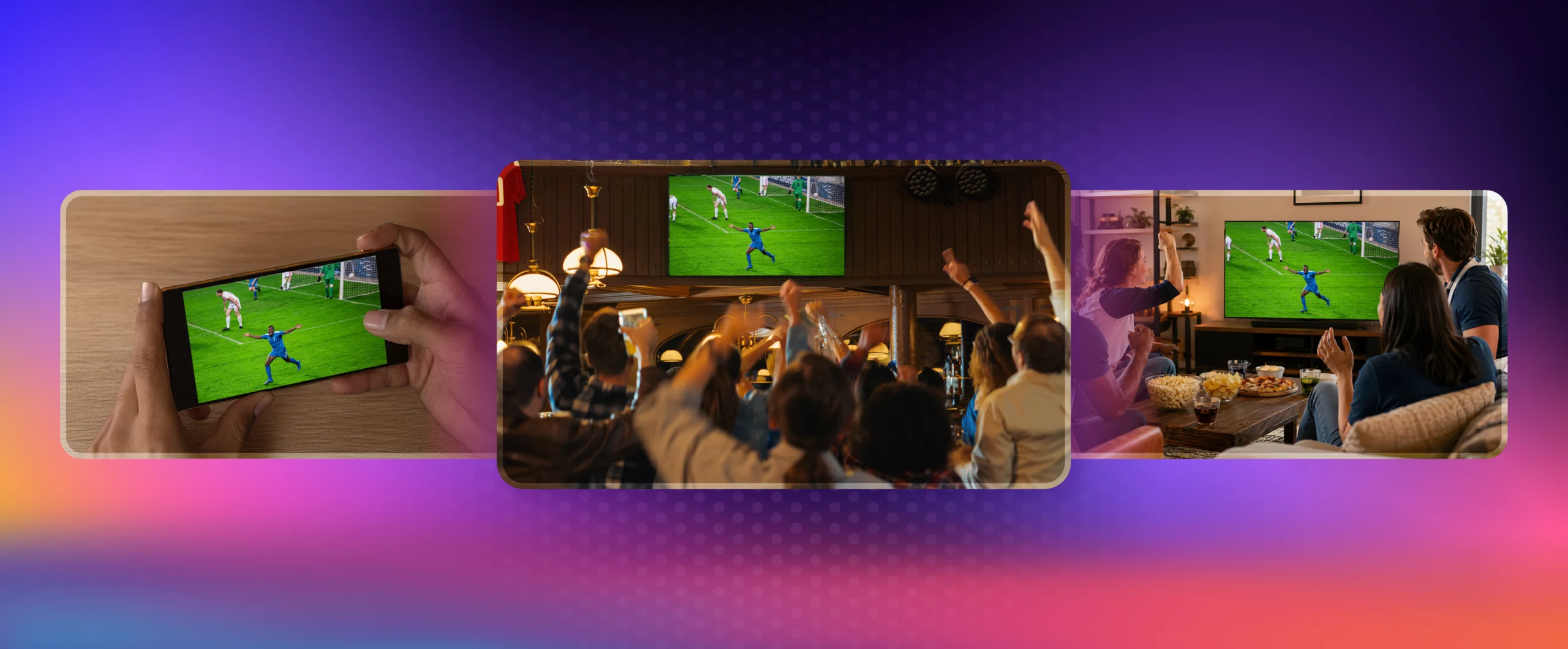
The first is spoiler prevention: fans watching on a TV, a phone, or a social feed expect to see the same play at roughly the same moment, and when one platform runs ahead, a viewer can catch a comment on the game-winning goal on social media before it reaches their own stream.
The second is real-time social engagement, where consistent latency lets fans celebrate, debate, and react together in sync rather than talking past each other across staggered timelines.
For these reasons and more, when choosing a live streaming platform, producers should focus on both latency and synchronization. As you’ll learn from this article, Dolby OptiView provides explicit, programmable control over both, enabling producers to fine-tune their production parameters to meet their specific business goals.
Latency vs. synchronization: Two different goals
Let’s define our terms. Latency is the difference between what’s actually happening on the field, court, or pitch and what the viewer sees at that same moment. Latency is frequently described as glass-to-glass, referring to the time from when the camera lens captures the action to when it is displayed on the viewer’s playback device.
Synchronization is whether all your viewers, across devices, locations, and networks, see the same point in the stream at the same time. Several terms further define synchronization. Drift describes how far an individual viewer has moved from their target latency. Viewer spread is the maximum drift between any two viewers and is often considered the metric that matters most for fairness and shared experiences.
How OptiView manages latency and synchronization varies by protocol, so let’s start there. OptiView supports three delivery protocols, each with a different latency profile: WebRTC for sub-second delivery (0.2–1s), HESP for low-latency HTTP streaming (1–9s, with sub-second achievable in tightly controlled environments), and HLS for standard delivery (9s and above).
Let’s take a closer look at each.
WebRTC vs. HESP vs. HLS: Latency, sync, and scale
| WebRTC | HESP | HLS | |
|---|---|---|---|
| Latency range | 0.2–1s | 1-9s | 9+ seconds |
| Sync controls | Intrinsic WebRTC controls | Target offset with drift window | Target offset with drift window |
| Interactivity | Ultra-low latency interactivity | Low-latency interactive streams | Mostly lean-back viewing |
| Scale | Real-time CDN, moderate scale | HTTP CDNs, large audiences | Max device/CDN compatibility |
| Typical applications | Betting, auctions, co-watch, telepresence | Sports betting, interactive sports, and classes | Broadcast-style OTT, big-screen apps |
| Cost | $$$ | $$ | $ |
WebRTC
WebRTC is the ultra-low-latency option, which can run at as low as 0.2 seconds, glass-to-glass latency. It’s the protocol used in most conferencing applications.
At sub‑second latency, viewers are naturally tightly synchronized. Still, OptiView’s WebRTC stack uses intrinsic WebRTC mechanisms, including jitter buffers and timing control, to smooth network jitter and prevent drift, but there’s no separate HTTP‑style drift window like HESP and HLS.
WebRTC is best suited for highly interactive use cases, like gambling, live auctions, co-watch experiences, and telepresence or real-time control. It can scale over a real-time CDN, but the stack is more specialized than standard HTTP streaming, and the cost per viewer is typically higher than HESP or HLS.
High Efficiency Streaming Protocol (HESP)
HESP is the low-latency HTTP option for interactive one-to-many streams with latency ranging from 1 to 9 seconds. This makes HESP ideal for sports betting, interactive sports streams, live classes, and similar experiences that require low latency, interactivity, synchronization, and scale.
HESP runs over standard HTTP CDNs, with adaptive bitrate streaming and fast channel changes, but requires HESP-capable players and additional CDN capabilities. Cost-wise, HESP sits between WebRTC and HLS. As described in more detail below, OptiView controls synchronization via drift controls around the target latency.
HTTP Live Streaming (HLS)
HLS can produce latencies of 9 seconds or more, making it best suited for lean-back broadcast-style OTT streams. In these applications, being a few seconds behind live is acceptable, and interactivity is limited or not time critical.
HLS’s main strengths are scale, compatibility, and video quality. HLS fits existing HLS workflows, works across Apple ecosystems, smart TVs, and legacy players, and uses standard CDNs with familiar operational patterns. In OptiView, HLS uses the same latency management controls as HESP.
By supporting three protocols with meaningfully different latency, sync, scale, and cost profiles, Dolby OptiView Streaming lets a producer match the transport to the experience rather than forcing every use case through one pipeline. A betting operator can run WebRTC, a broadcaster can run HLS, and an interactive sports stream can sit in between on HESP.
Each publisher’s needs and priorities are different. If you’re not sure which protocol is best for your live sports use case, you don’t have to solve it alone. The OptiView team can help you choose the right mix of WebRTC, HESP, and HLS for viewers across a variety of devices and connections. In many cases, using several protocols together delivers the best overall experience for your audience.
How OptiView controls stream latency
To understand how OptiView manages latency and sync, you first need an overview of the OptiView workflow. Briefly, you build a channel in OptiView from three main components: an ingest, an engine, and one or more distributions. The ingest accepts your contribution feed. The engine transcodes and packages that feed into HTTP outputs, producing HESP and HLS renditions for delivery.
Distributions then expose those outputs over a CDN and can optionally be configured with a WebRTC source for sub‑second, real‑time delivery alongside HESP and HLS. The OptiView Player connects to a distribution and plays the best available protocol for each viewer.
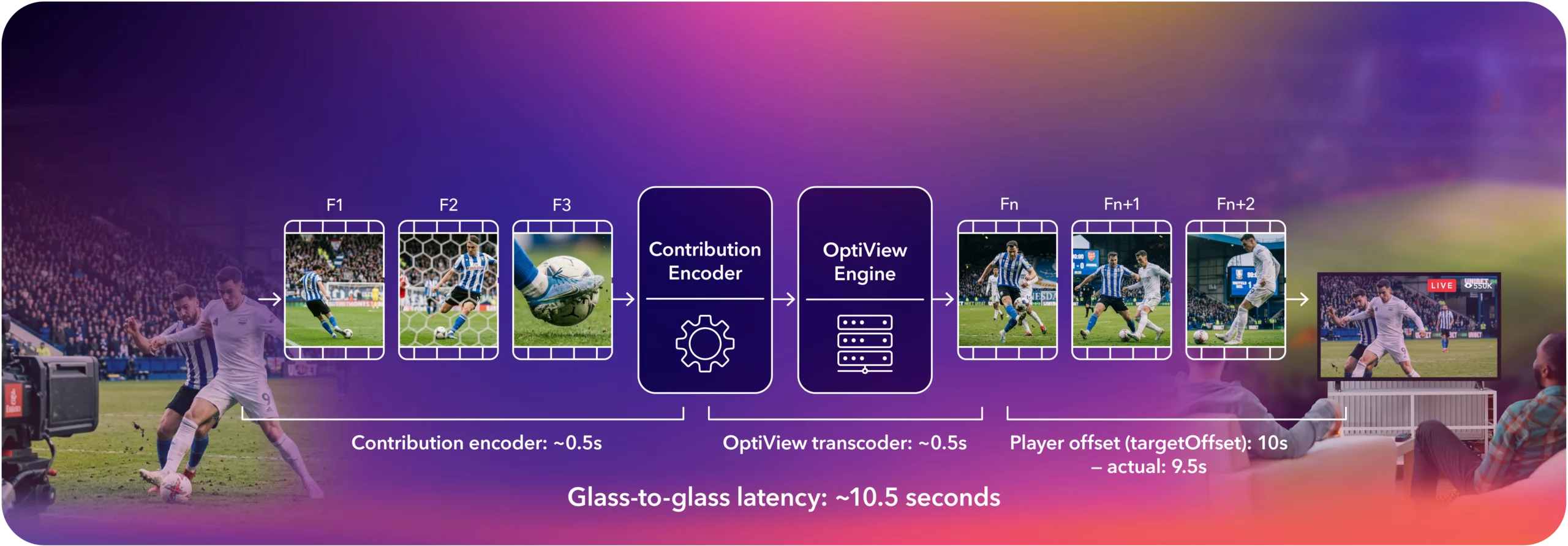
As shown in Figure 1, two stages in that pipeline add latency: your contribution encoder and the transcoder in the OptiView Engine. This is typical of all cloud-based live distribution systems; the contribution encoder captures the event at the source and sends a high-quality mezzanine file into the cloud. From there, the cloud service transcodes the incoming stream to produce the required formats and ladders and delivers them to the CDN.
In OptiView, this contribution to transcoder workflow occurs only with HLS and HESP outputs. The WebRTC stream is fed directly to clients through the system with minimal processing.
What adds latency in a live stream
All contribution encoders have their own presets, which control quality and latency. As you probably know, encoding at very low latency can degrade video quality. Techniques like lookahead, which help encoders make smarter compression decisions, necessarily increase latency. Since contribution encoders typically produce high-bitrate mezzanine files, running at low latency typically has minimal impact on quality at this stage. In Figure 1, we assume that the contribution encoder will add 0.5 seconds of latency.
Inside OptiView, the engine transcodes the contribution feeds for HESP or HLS delivery. When HESP is selected as an output protocol, the engine minimizes latency, limiting the encoding toolset applied and producing quality comparable to other low-latency encoders on the market.
When HLS is the only selected protocol, the transcoder uses more advanced encoding techniques, like longer GOP structures and look-ahead, resulting in noticeably higher image quality at the same bitrate. In Figure 1, we assume that the OptiView engine also adds 0.5 seconds of latency. Note that actual latencies will vary depending upon the protocols deployed and other setup details.
Two control levers: Latency target and sync window
At this point, the video is in the system, and OptiView can control latency and sync. OptiView accomplishes this via two controls: one that sets the latency target and a set of drift controls that keep viewers close to that target.
Specifically, you set your desired latency via the targetOffset parameter, which you can set in two places. First, you can configure a default targetOffset in the dashboard or API, which sets the synchronization target for all players. You can override this on the player side using the same targetOffset control in the player’s latency configuration, which lets you fine‑tune latency per source or per viewer.
As shown in Figure 1, targetOffset starts after the video has been ingested into OptiView, so it ignores the contribution encoder latency. However, it subtracts any latency from the transcoder. So, if the OptiView transcode adds 0.5 seconds of latency and you configure a 10‑second target, OptiView tells the player to play the stream roughly 9.5 seconds behind the OptiView live edge. This allows publishers to set the desired latency without knowing how much latency the transcoder is adding.
Controlling viewer synchronization with drift windows
Once you set the TargetOffset, the second job is keeping viewers at the target. To maintain synch, OptiView lets you define an acceptable drift window around targetOffset using two parameters: minimumOffset and maximumOffset (Figure 2).
Think of these as the edges of a zone. So long as a viewer’s live offset sits inside that zone, the player runs at normal speed. If a viewer drifts outside the zone in either direction, the player nudges the playback speed to bring them back. The defaults are 0.66 times targetOffset on the low side and 1.5 times targetOffset on the high side, so the zone is deliberately asymmetric, allowing more drift behind the target than ahead of it.
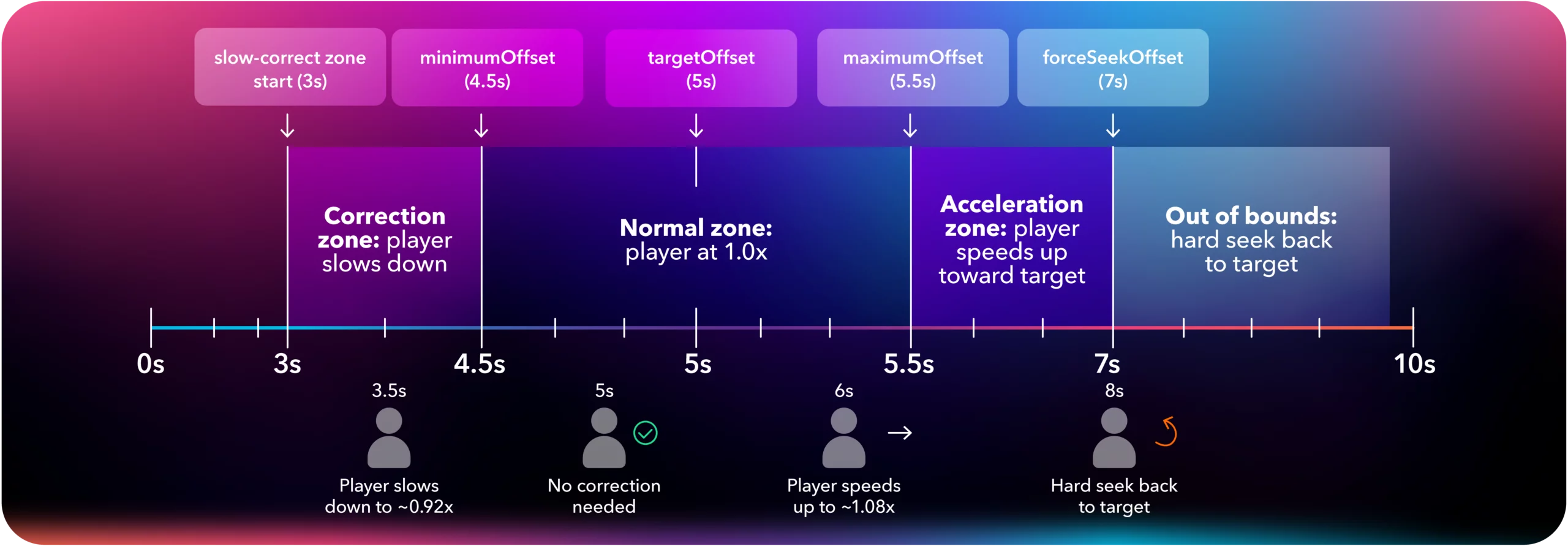
In Figure 2, the targetOffset is set to 5 seconds, marked by the central line and target icon. A narrow green band from 4.5 to 5.5 seconds shows the normal operating zone, bounded by minimumOffset on the left and maximumOffset on the right. Viewers inside this band run at normal 1.0x speed and don’t need any correction.
Outside that green zone, the player starts correcting drift. The amber zones, between 3-4.5 seconds and 5.5-7 seconds, represent viewers who have fallen behind the target. Here, the player speeds or slows down by about 8%, bringing them back toward 5 seconds without a visible jump.
The red forceSeekOffset line at 7 seconds marks the hard limit. If a viewer drifts beyond that line, the player performs a hard seek back to the target. forceSeekOffset is also the mechanism used to maintain sync on older devices that don’t support small playback-speed adjustments.
Conclusion
Low latency and synchronization are related but different goals. With Dolby OptiView, you have the flexibility to choose a latency target with targetOffset. Then you set how tightly fans stay around that target with minimumOffset, maximumOffset, and forceSeekOffset. Together, these controls let you keep viewers synchronized for a shared moment while still leaving room for smooth playback.
For live sports streaming platforms, that shared experience matters. Keeping viewers synchronized helps prevent spoilers, supports real-time social and interactive experiences, and preserves the collective moments that make live sports compelling.
A great sports platform delivers quality, reliability, and interactivity at scale to strengthen subscriber retention. Synchronization is the thread that ties them together into something that feels truly live. With Dolby OptiView, you don’t just manage latency. You deliver shared fan experiences consistently, at scale, and on your terms, so every fan stays in the same moment.