AirPlay on Web
AirPlay is a casting technology developed by Apple. AirPlay allows viewers to mirror their videos between AirPlay-enabled sender and receiver devices.
- iPhones, iPads and MacBooks are possible AirPlay-enabled sender devices.
- Apple TVs or AirPlay–enabled smart TVs are possible AirPlay-enabled receiver devices.
THEOplayer offers support for AirPlay on AirPlay-enabled devices through its Web SDK and iOS SDK.
How to enable AirPlay
Ensure that an AirPlay-enabled receiver device is connected to your network, because you might not see an AirPlay icon otherwise. Additionally, note that AirPlay is only supported by Apple on a limited set of devices and browsers. For example, you cannot do AirPlay on a Chrome browser on a macOS device, even though it's an Apple device.
AirPlay is a THEOplayer feature.
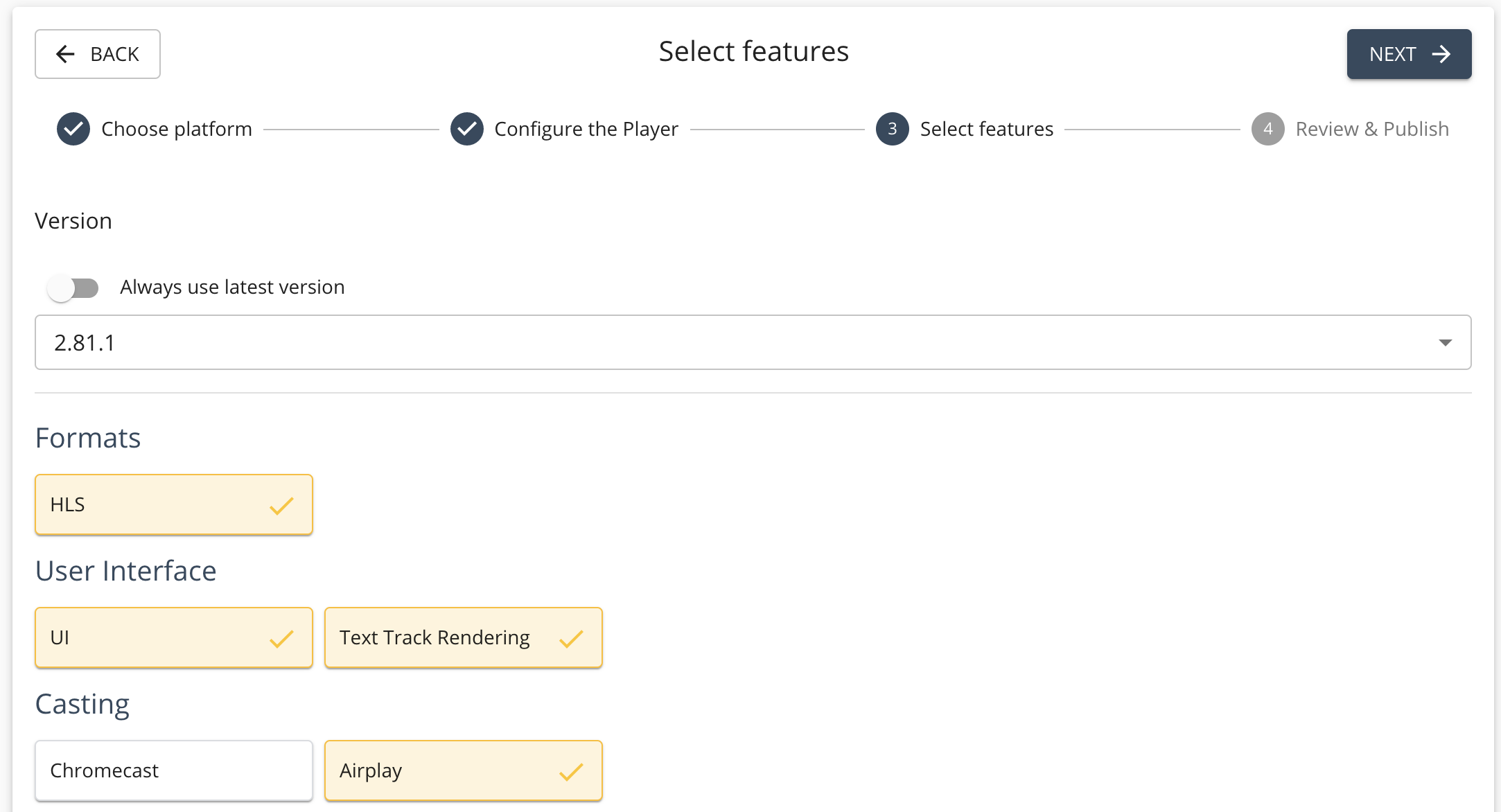
Ensure that the airplay feature is enabled when you build a THEOplayer SDK through the THEOplayer Developer Platform,
as demonstrated by the screenshot below.
Alternatively, if you are using a THEOplayer SDK from npm, make sure that the package flavor you picked has the airplay feature in it.
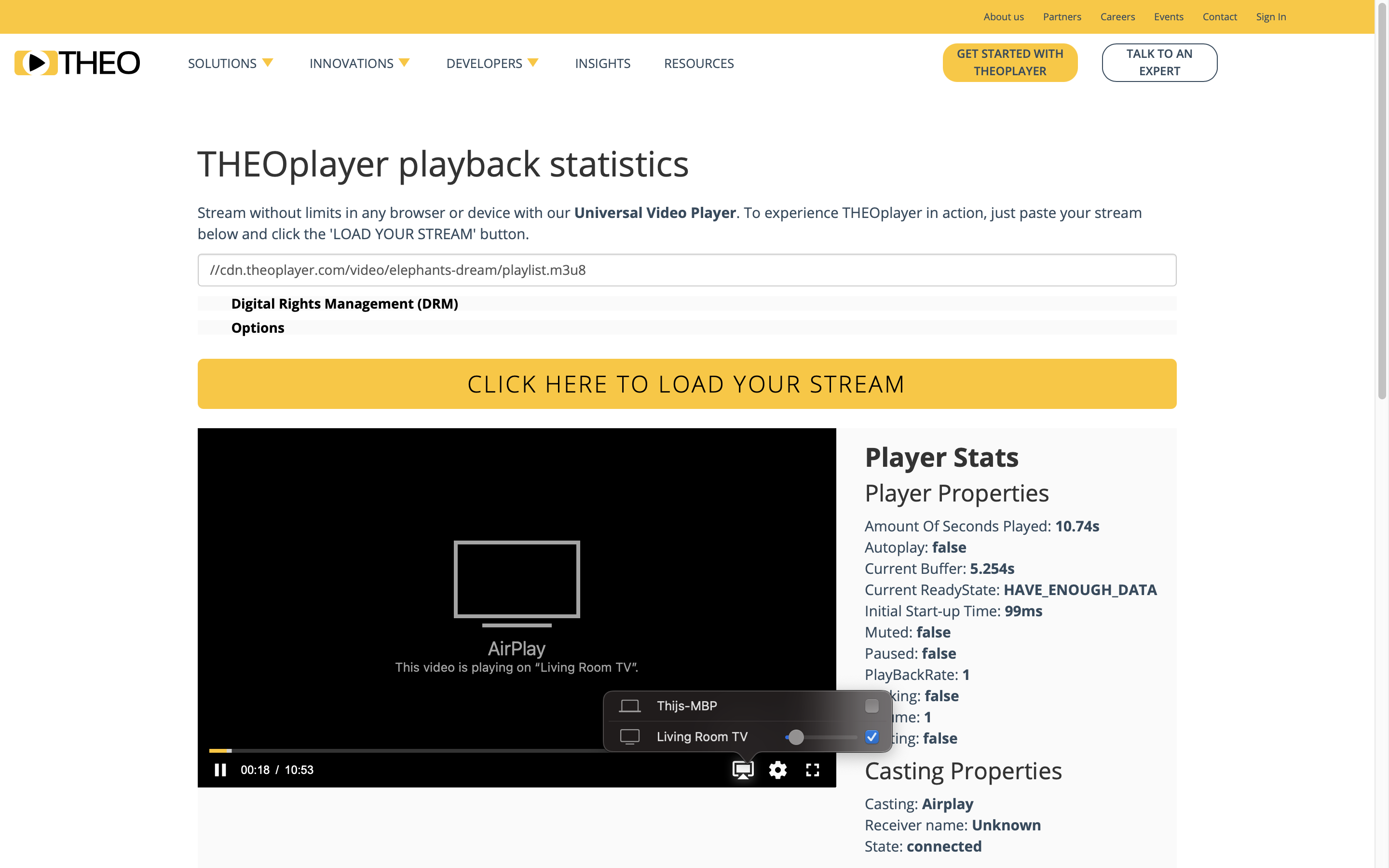
If the airplay feature is enabled, the default THEOplayer UI should render the AirPlay icon in the control bar,
as demonstrated by the screenshot below.
Viewers can click this AirPlay icon and select an AirPlay receiver device to initiate (and stop) the AirPlay session.
If you have a custom (chromeless) THEOplayer UI, you need to build your own AirPlay UI and UX. You can use the THEOplayer AirPlay API to help achieve this, as discussed in the next section.
API
As a developer, you might need to use the THEOplayer AirPlay API to build a custom AirPlay UI and UX, or to dispatch an event to an analytics service, or for workflow purposes.
For more information, see the API reference of AirPlay, a sub-interface of Cast which inherits from VendorCast.
Use the API as demonstrated below:
// const player = new THEOplayer.Player(...)
const airPlayState = player.cast.airplay.state;
const isCasting = player.cast.airlay.casting; // true or false
// ...
// if (want to start AirPlay)
player.cast.airplay.start();
// ...
// if (want to stop AirPlay)
player.cast.airplay.stop();
// ...
if (airPlayState == 'available') {
  // airplay is possible
  player.cast.airplay.addEventListener('statechange', function (event) {
    switch (event.state) {
      case 'available':
        // show AirPlay available icon
        break;
      case 'connected':
        // show AirPlay connected icon
        break;
    }
  });
}
Note that the connected and available state are the only two states offered for AirPlay, because
Safari only exposes limited information.
Remarks
- Chromecast and AirPlay are comparable technologies.