# Haivision
**Haivision** provides professional broadcasting equipment to the streaming industry. The KB series of H.264 & HEVC Internet Media Encoders and Transcoders deliver high-quality video streaming for resolutions up to 4K, available as small form factor portable appliances as well as rack-mountable enterprise-grade servers. The KB Series provides you with multiple options for live event streaming, helping you deliver the highest quality live video to your global internet audience.
See the official [Haivision](https://www.haivision.com/) site for documentation, installation instructions, and additional support.
## Haivision KB
To get started, log into your Dolby OptiView dashboard. Enter your KB web interface, switch views to the Channel Control Center, and create a new channel.
Follow the Create Channel Wizard prompts to create a channel as normal:
1. Enter the desired channel name.
2. Identify your live source for the channel input.
3. Choose RTMP for the channel output and copy the RTMP publish path from the Dolby *channel* you have created.
RTMP URL: `rtmps://rtmp..hesp.live/live`
4. Enter the RTMP publish stream name from the ingest server section.
Stream Name: ``
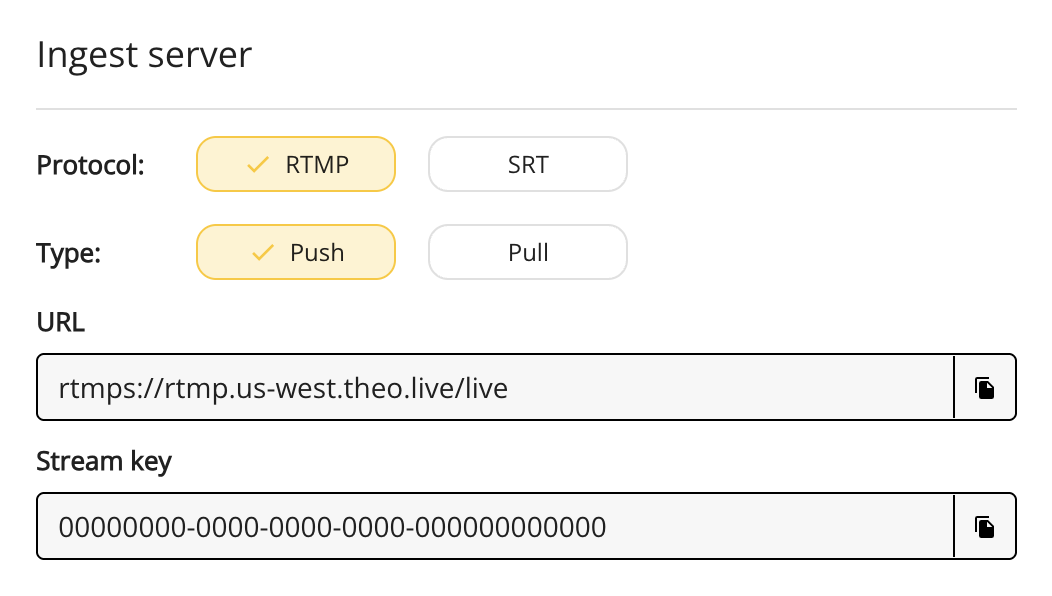
With the broadcast credentials set up, the stream is ready to go live. To view the stream, scroll down to the *Playout configurations* section in your channel page and start the player.
## Recommended settings
Here are some adjustments recommended by the [Haivision support](https://www.haivision.com/support/) team:
| Settings Location | Recommendation |
| ---------------------------------------- | -------------------------------------------------- |
| In Input settings | Change Timestamps from System Time to Zero-Based\* |
| In Video Encoder settings > Settings tab | Change the Framing from IBBP to IP |
| In the Advanced tab | Change the Codec Present to Baseline |
| Set GOP | Fixed Mode with 2000ms |
| Set Entropy coding mode | CABAC |
| Set Recommended Bitrate | 6,000 @ 1080p or 4,500 @ 720p |
\*Note: The timestamp seeding seemed to be the magic change on the KBs.
> **🚧 Frame rate and bandwidth**
>
> Remember to set the frame rate to the same value as in your THEOlive channel ingest configuration and make sure that your encoder has a stable connection and enough upload bandwidth. See [Stream configuration](https://optiview.dolby.com/docs/theolive/v1/contribution/stream-configuration.md) for more details.