LiveU
LiveU Studio is a cloud production studio for live video that supports WebRTC streaming to the OptiView Real-time platform with WHIP. This guide outlines how to create and broadcast a high-quality low-latency stream globally with OptiView Real-time Streaming.
See the official LiveU Studio site for documentation, installation instructions, and additional support.
How-to use LiveU with WHIP
To get started, create a token in your OptiView Real-time Streaming Dashboard. On the Publishing tab of the newly created token, copy the WHIP endpoint URL and your Publishing token as shown in the WebRTC | WHIP guide.
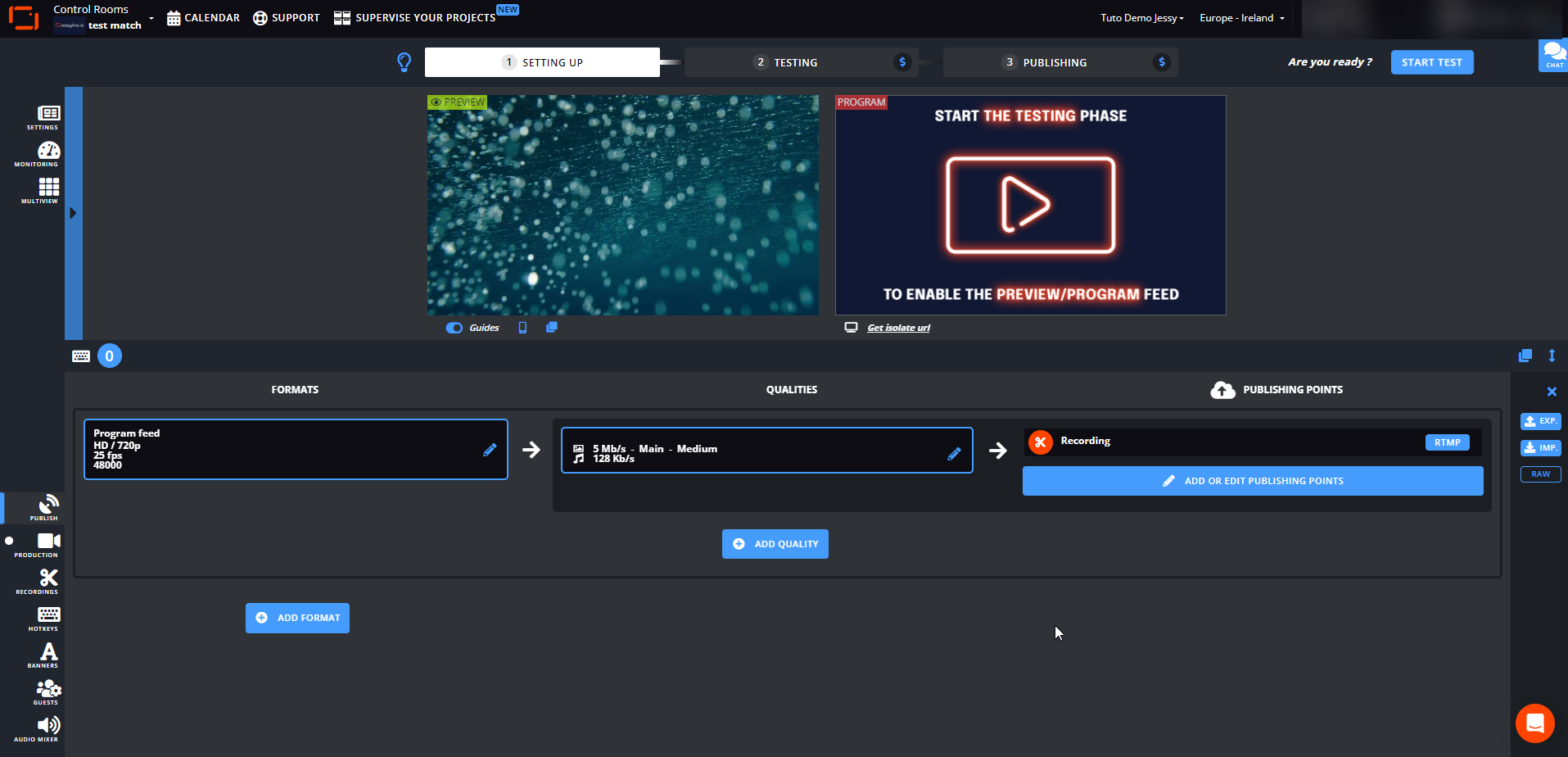
Open LiveU Studio and click on "PUBLISH" in the left-side menu. Click on "ADD OR EDIT PUBLISHING POINTS".
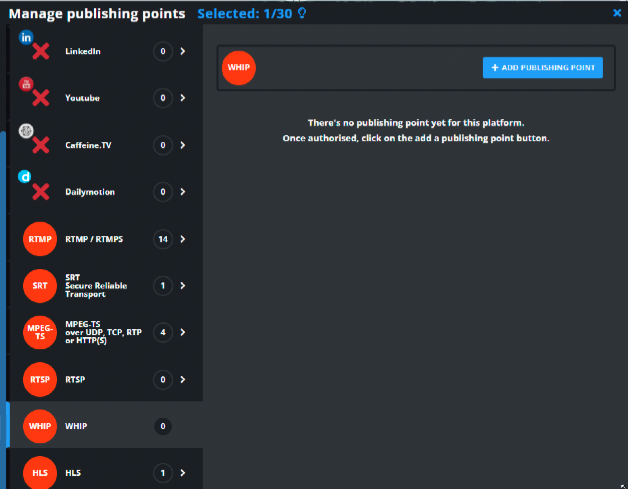
Select "WHIP" from the menu and Click "+ ADD PUBLISHING POINT".
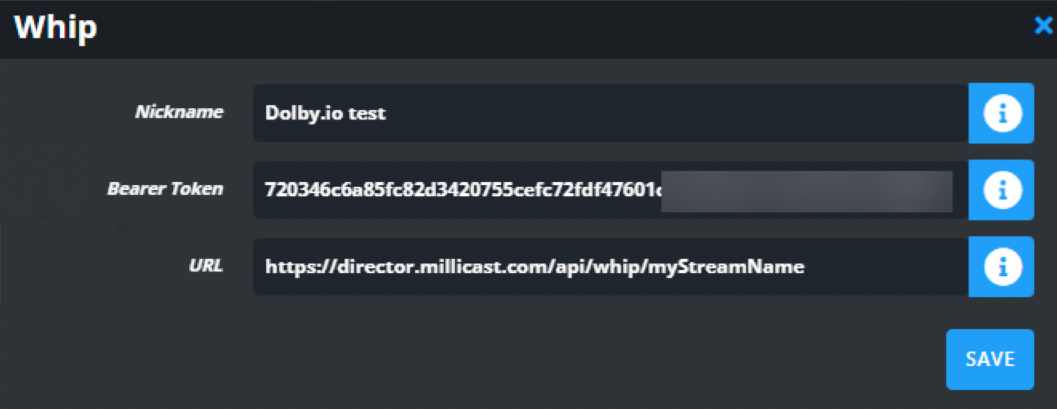
Paste the WHIP endpoint URL and your Publishing token copied from the OptiView Real-time Streaming Dashboard. Save the publishing point and select it.
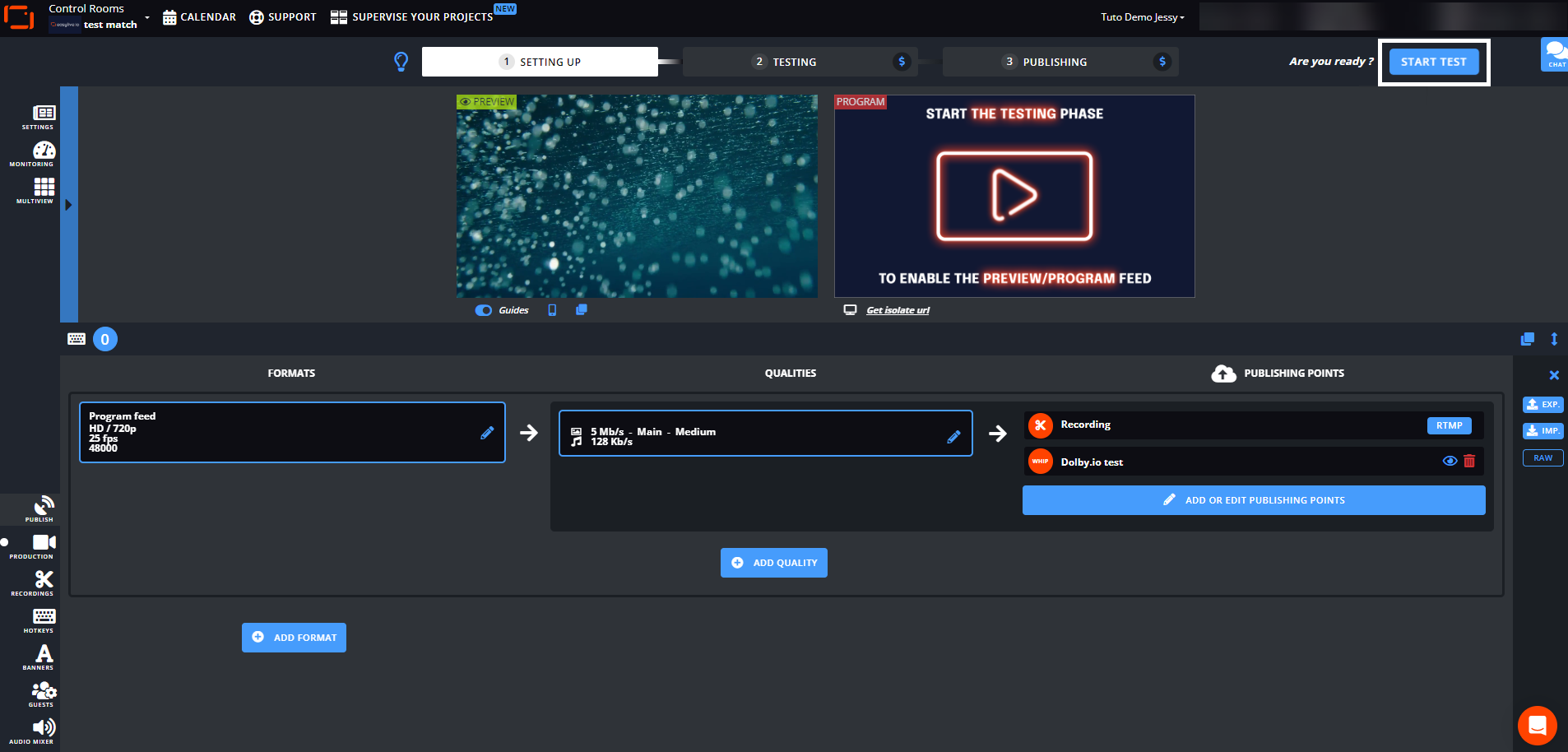
Click "START TEST" from LiveU Studio.
Click "START PUBLISHING AND RECORD" to start publishing from LiveU Studio to OptiView Real-time Streaming.
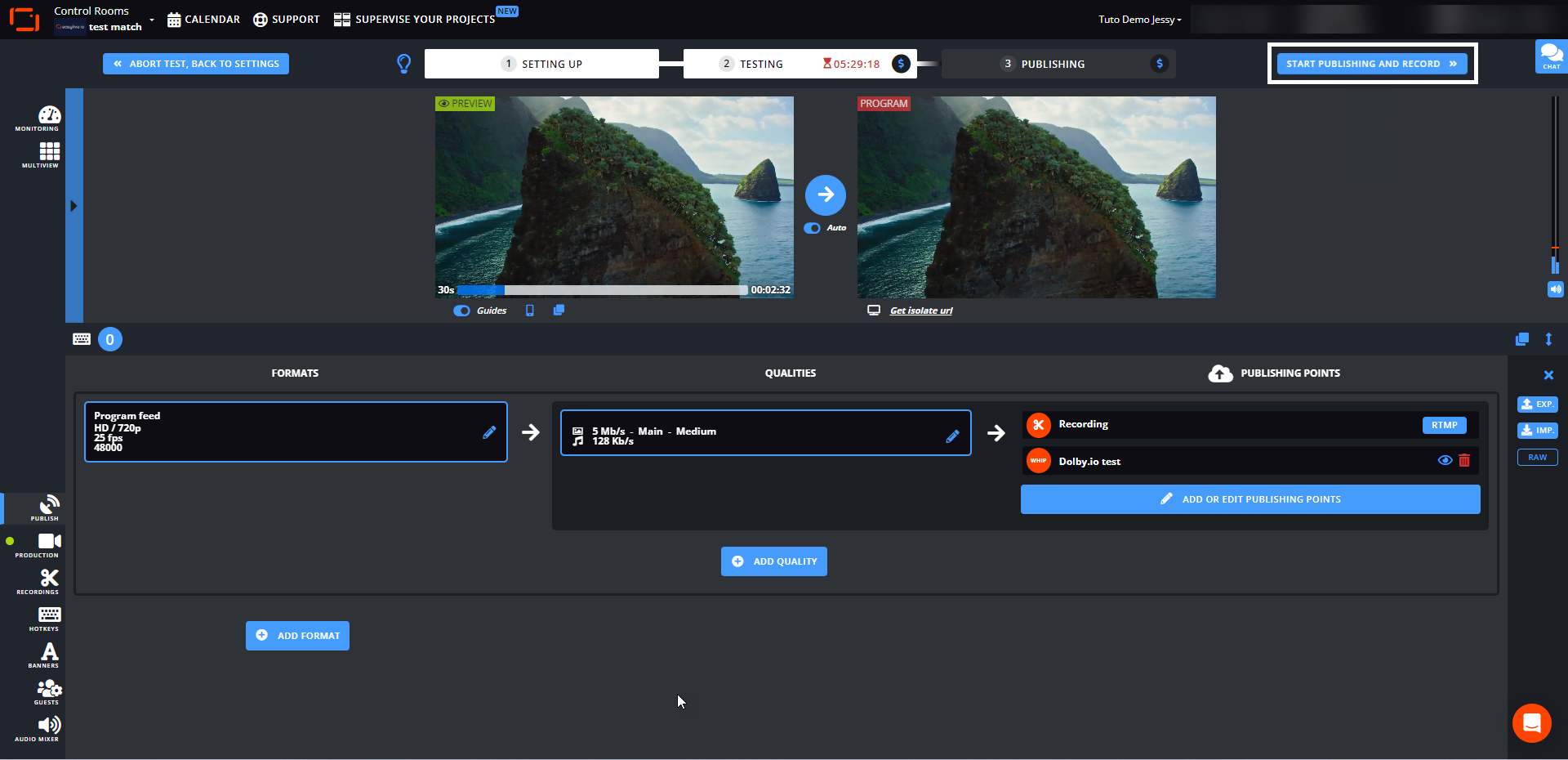
LiveU Studio will publish to the OptiView Real-time Streaming service using WHIP. To view the stream, navigate back to your newly created token and switch to the "Playback" tab. From the "Playback" tab, copy the "Hosted Player path" URL and open it in your browser.
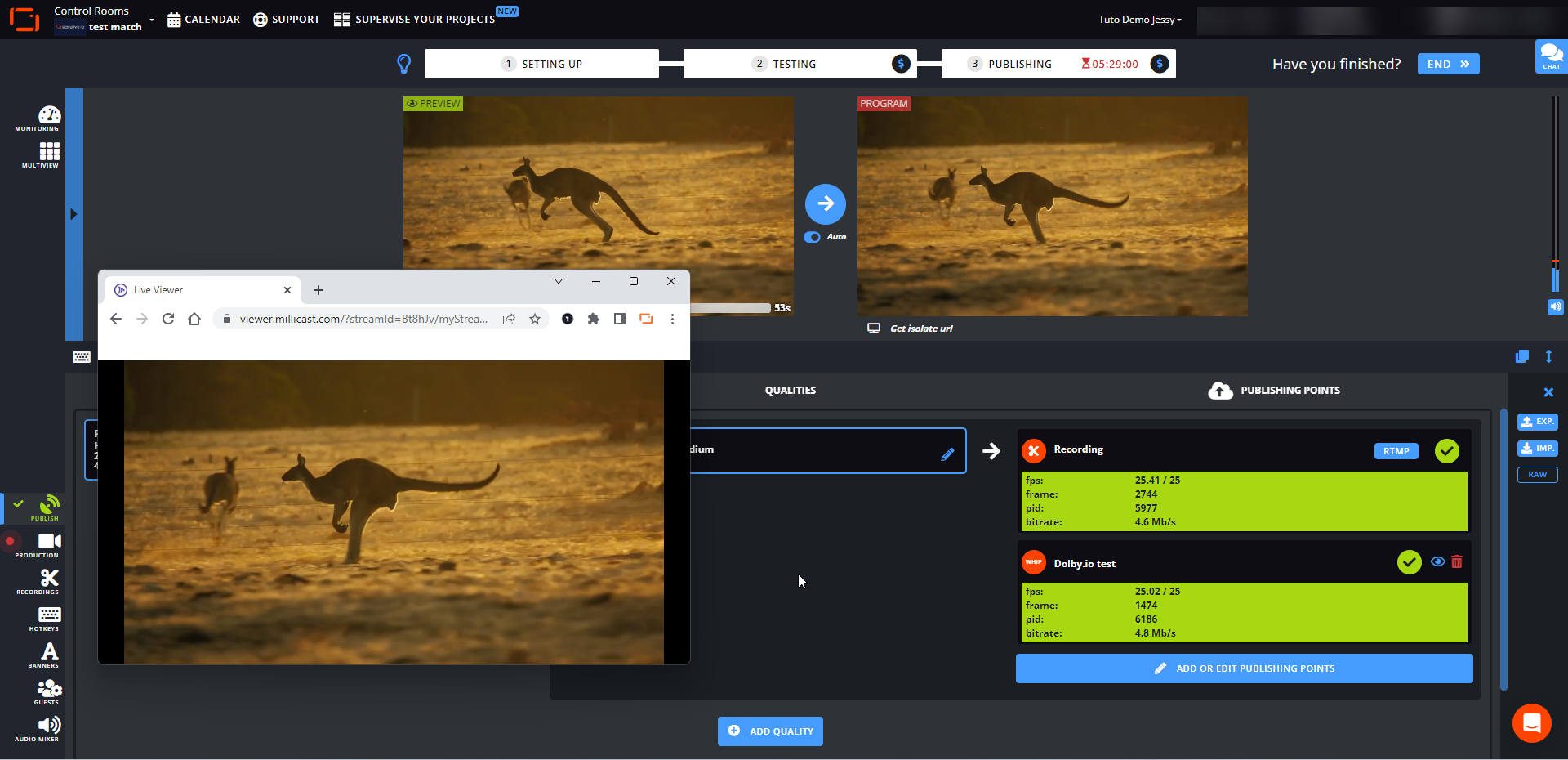
Your LiveU broadcast should now be playing in your browser.
LiveU Studio recommends publishing to the OptiView Real-time Streaming service with a max bitrate of 4 Mbps. A bitrate of 4 Mbps up to 6 Mbps may cause instabilities or artifacts. A bitrate above 6 Mbps may cause visible problems and/or your stream will not start.
Learn more
Learn more by exploring the developer blog and code samples.