# Teradek
**Teradek** is a designer and manufacturer of professional high-end video equipment and solutions for creating and sharing content. Teradek offers a range of support for different broadcast standards and protocols, including support for [RTMP, RTMPS](https://optiview.dolby.com/docs/millicast/broadcast/rtmp-and-rtmps.md), [SRT](https://optiview.dolby.com/docs/millicast/broadcast/srt.md), and [NDI](https://optiview.dolby.com/docs/millicast/broadcast/ndi.md), all of which can be distributed via the OptiView Real-time CDN.
> **Getting Started**
>
> If you haven't already, begin by following the [Getting Started](https://optiview.dolby.com/docs/millicast/getting-started.md) tutorial to start your first broadcast. You'll need your *RTMP publish path* and *RTMP publish stream name* for the steps described below.
See the official [Teradek](https://teradek.com/) site for documentation, installation instructions, and additional support.
## Teradek
### How-to setup the VidiU for RTMP streaming
To get started, you'll have to [login](https://streaming.dolby.io) to an OptiView Real-time account. Within the account, you'll need to create a token and copy RTMP publishing paths. You'll also have to download the [Vidiu or Teradek app](https://teradek.com/pages/vidiu-x) for your mobile device.
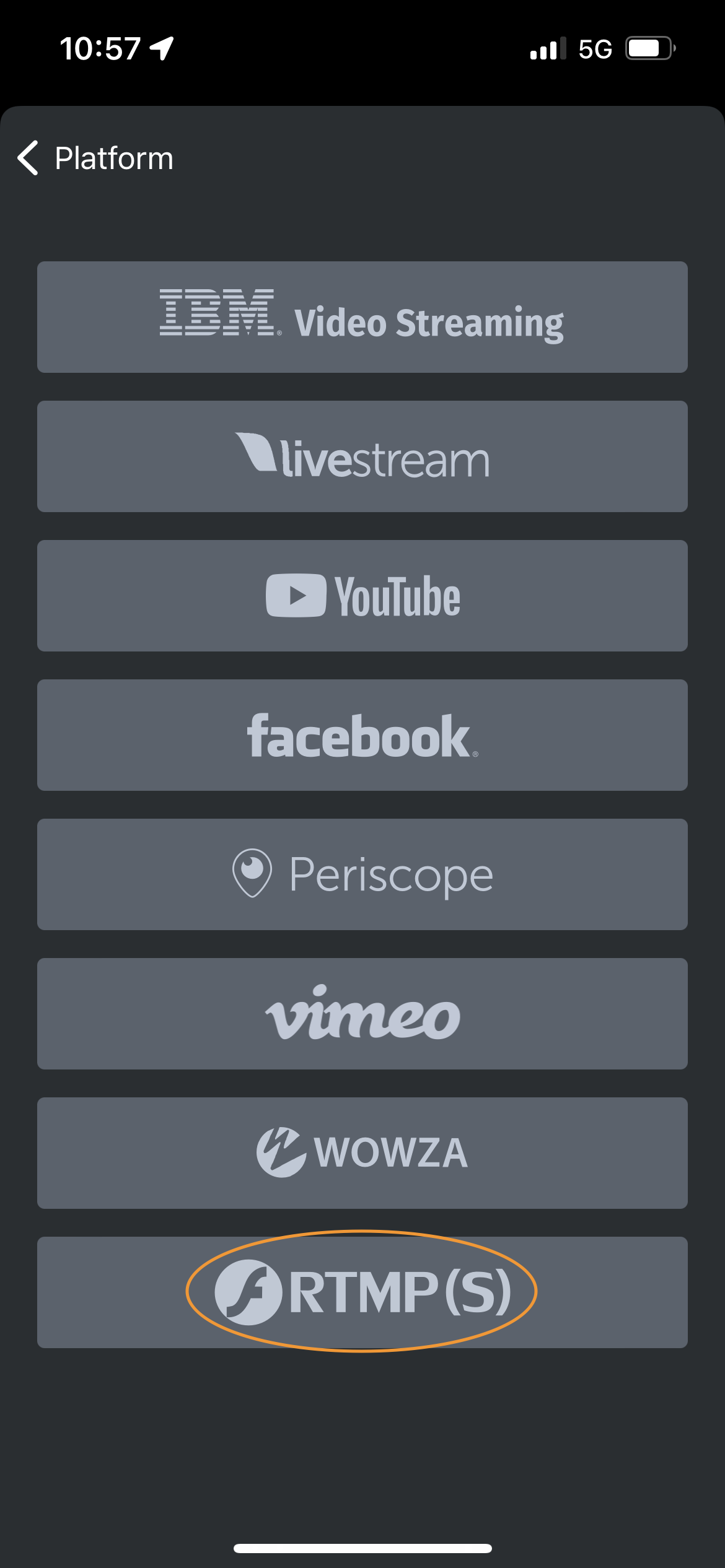
From your VidiU app on your mobile device, select `Device > Settings > Broadcast > Platform`. After Platform, select `RTMP(S)` at the bottom of the menu.
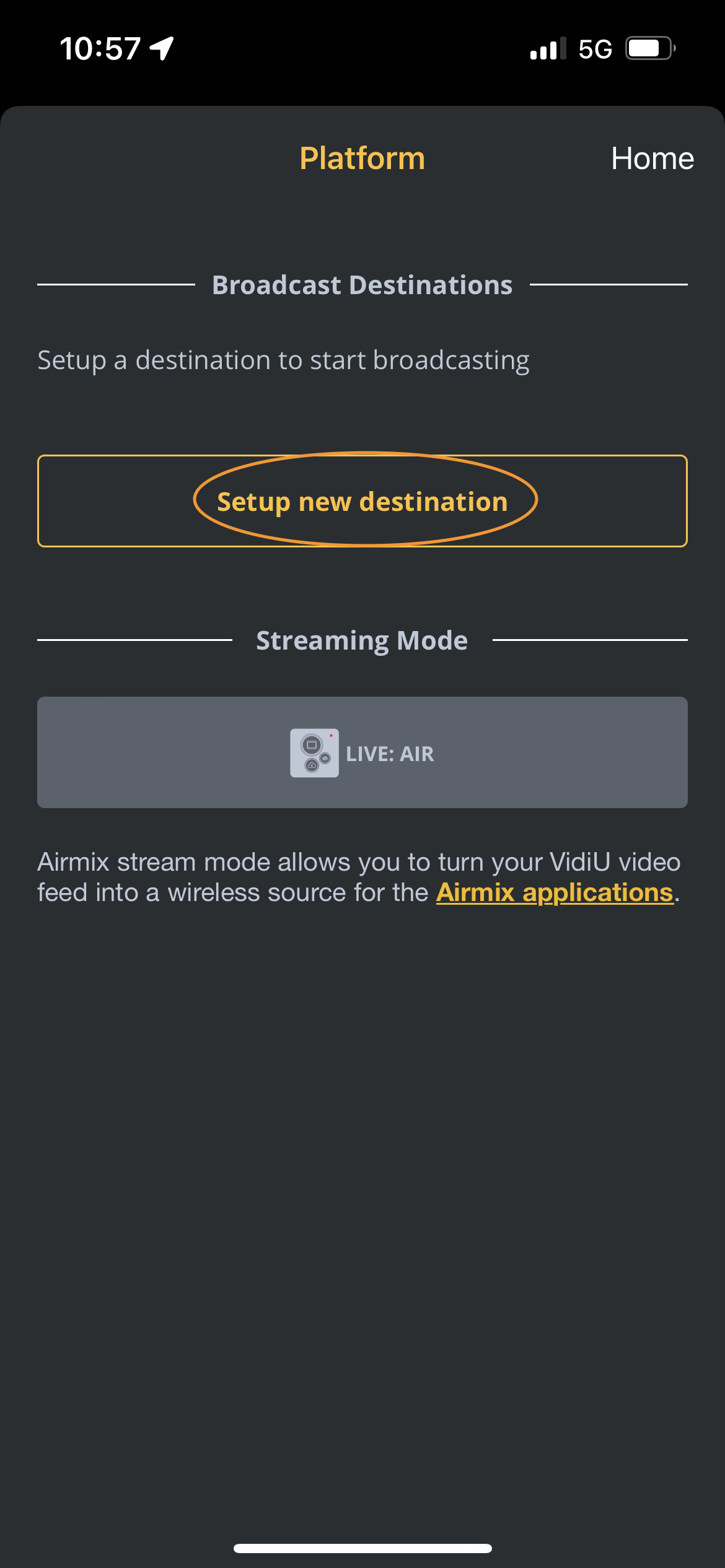
Select "Setup new Destination".
Enter your OptiView Real-time Streaming RTMP or RTMPS path, and your RTMP publish stream name:
* For example, RTMP would look similar to:
`rtmp://rtmp-auto.millicast.com:1935/v2/pub`
* For example, RTMPS would look similar to:
`rtmps://rtmp-auto.millicast.com:443/v2/pub`
* For example, StreamName would look similar to:
`myStreamName?token=3bc330607a15a0ecebebd8c9ee2a559fd143c937174bd276e213a96425bb107e`
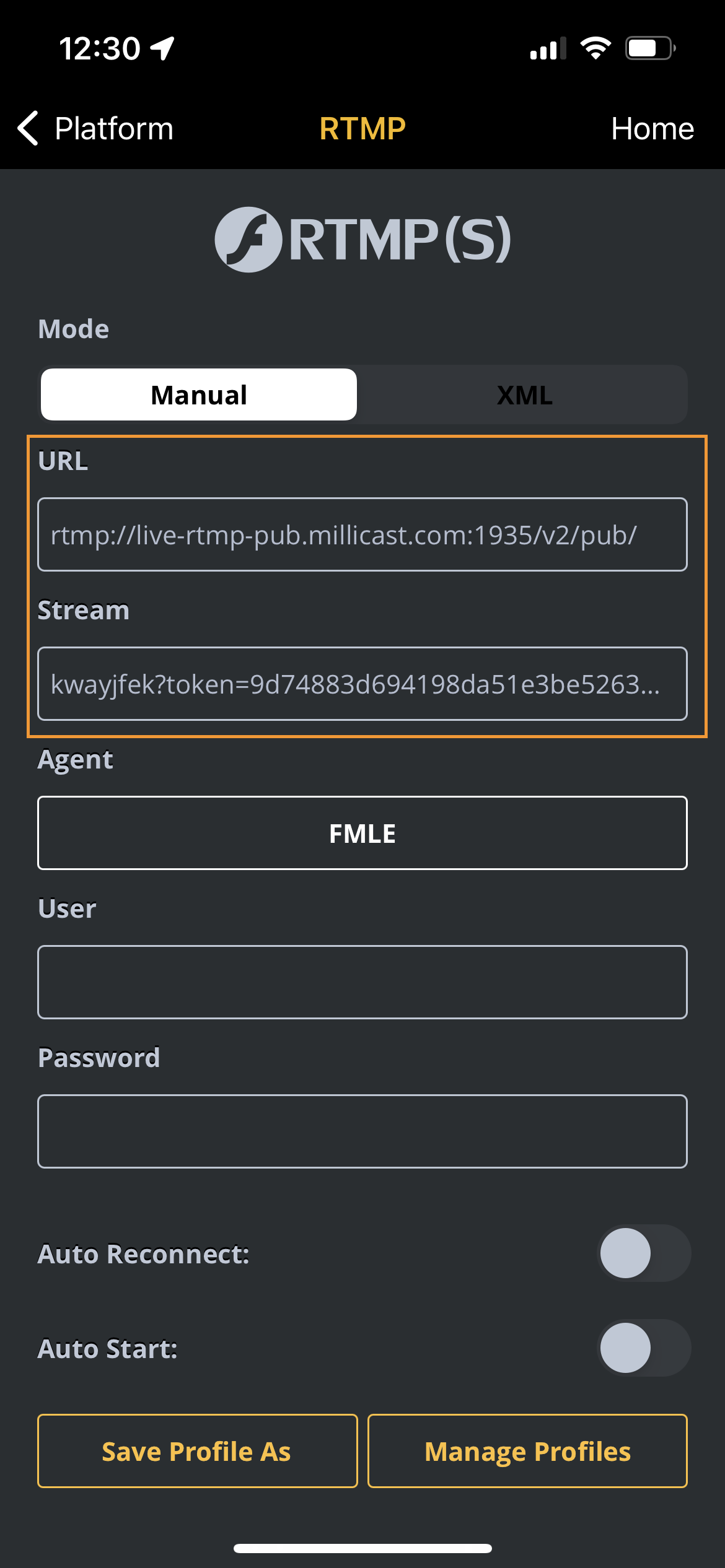
With the credentials added, you're ready to start your broadcast. The stream can be started from the app or via the "broadcast" button on the physical Vidiu encoder.
To view the stream, navigate back to your newly created token and switch to the "Playback" tab. From the "Playback" tab, copy the "Hosted Player path" URL and open it in your browser as shown in [this video](https://www.youtube.com/watch?v=GRLIT_Xii3M).
### How-to setup the Teradek Wave for RTMP streaming
To get started, you'll have to [login](https://streaming.dolby.io) to an OptiView Real-time account. Within the account, you'll need to create a token and copy RTMP publishing paths. You'll also have to have your Teradek Wave in hand, ready to use.
* From your Teradek Wave, start by selecting `Create event > Device > Configure your event`and setting your Channel Name.
* Set the Server URL for RTMP as your RTMP publish path. For example:
`rtmp://rtmp-auto.millicast.com:1935/v2/pub`
*OR*
* Set the Server URL for RTMPS as your RTMPS publish path. For example:
`rtmps://rtmp-auto.millicast.com:443/v2/pub`
* Set the StreamName as your RTMP publish stream name. For example:
`myStreamName?token=3bc330607a15a0ecebebd8c9ee2a559fd143c937174bd276e213a96425bb107e`
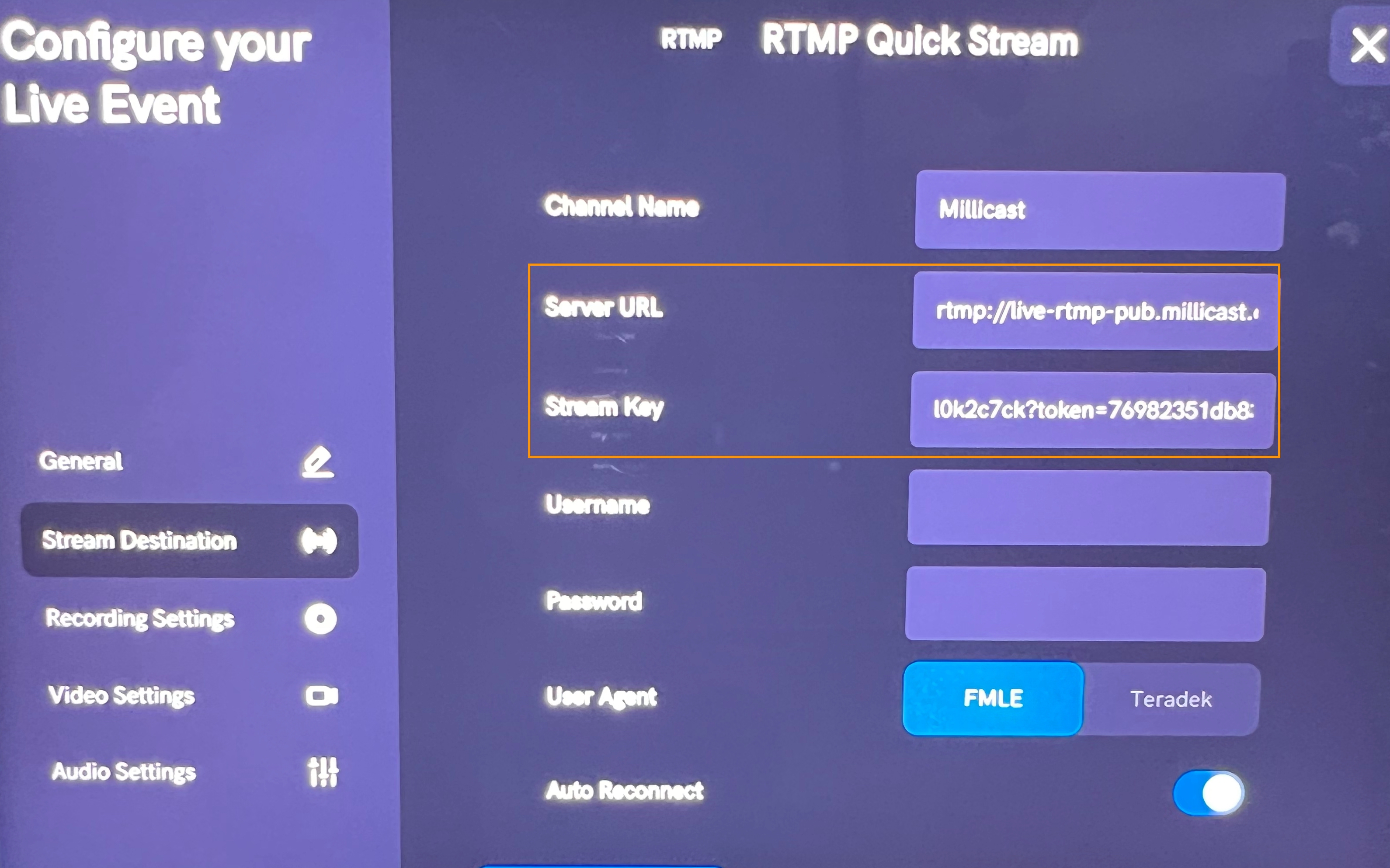
You can also adjust the additional settings on the Teradek Wave, such as:
* Recording Settings
* Video Settings
* Audio Settings
To view the stream, navigate back to your newly created token and switch to the *Playback* tab. From the Playback tab, copy the *Hosted Player Path* URL and open it in your browser.
Teradek products that use [RTMP, RTMPS](https://optiview.dolby.com/docs/millicast/broadcast/rtmp-and-rtmps.md), [SRT](https://optiview.dolby.com/docs/millicast/broadcast/srt.md), and [NDI](https://optiview.dolby.com/docs/millicast/broadcast/ndi.md) can all be used with OptiView Real-time Streaming for low-latency streams with global delivery.